
See how it works.
Then decide how to use it.
From the workspace and public registration page to the guest list,
follow the screens through a complete workflow.
These local demo screens contain fictional events and guests and show the Chinese interface. They explain the workflow without submitting registrations.
Open the complete synthetic activity demo (opens in a new tab)What you can see, and what we agree separately.
The screens below show event details, registration and authorised guest-list management. Demo data is fictional and does not send email or create a live registration.
Live confirmation email and admission QR require eligibility and the relevant configuration. Included services, onsite equipment, crew and printing arrangements are confirmed in the event quote.
Already have Forms or another platform? You can discuss equipment, crew and materials on their own. Explore onsite support →
Details → questionnaire → demo receipt
Explore organization, job title and questions. This demo sends no email and creates no real booking; its QR is labeled DEMO and is not valid for admission.
Start the synthetic demoALEX DEMO
Example Company
Workshop participant
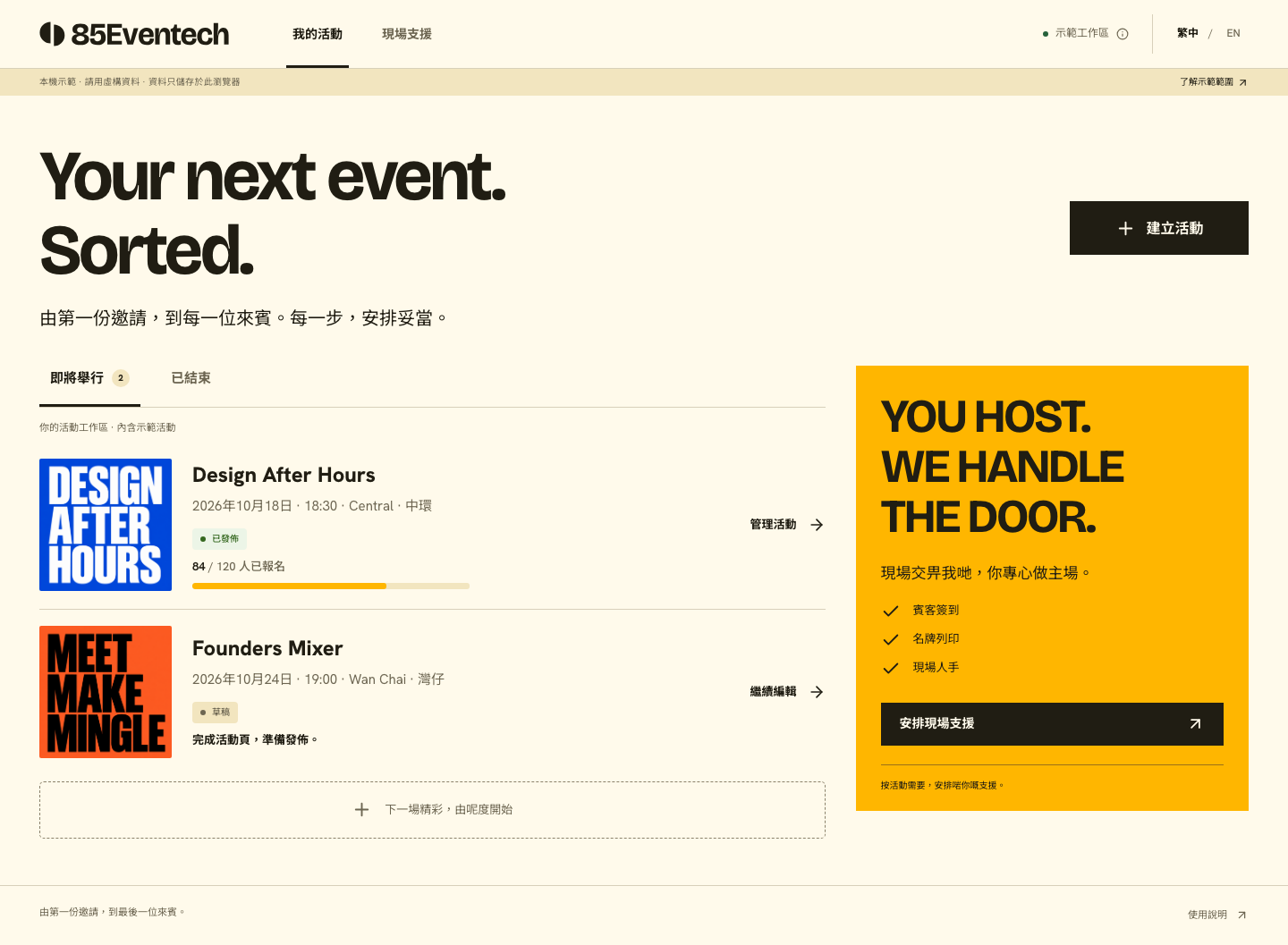
Start in the event workspace
View events and registration status together, then manage each event. Raise a separate inquiry when onsite support is needed.
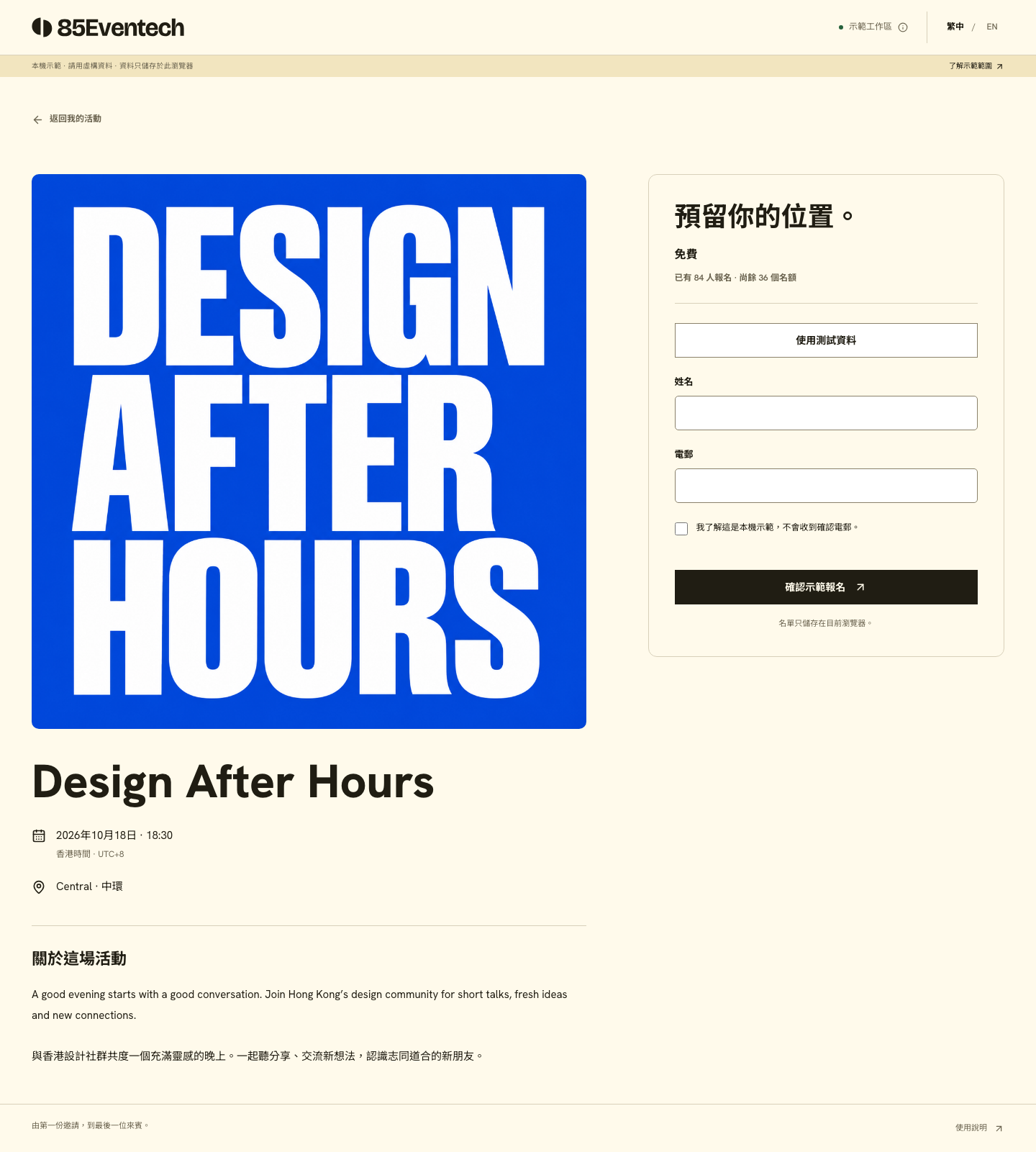
Help attendees understand and register
The public page presents event details and collects names and email addresses. Registration availability follows capacity, registration status and event timing.
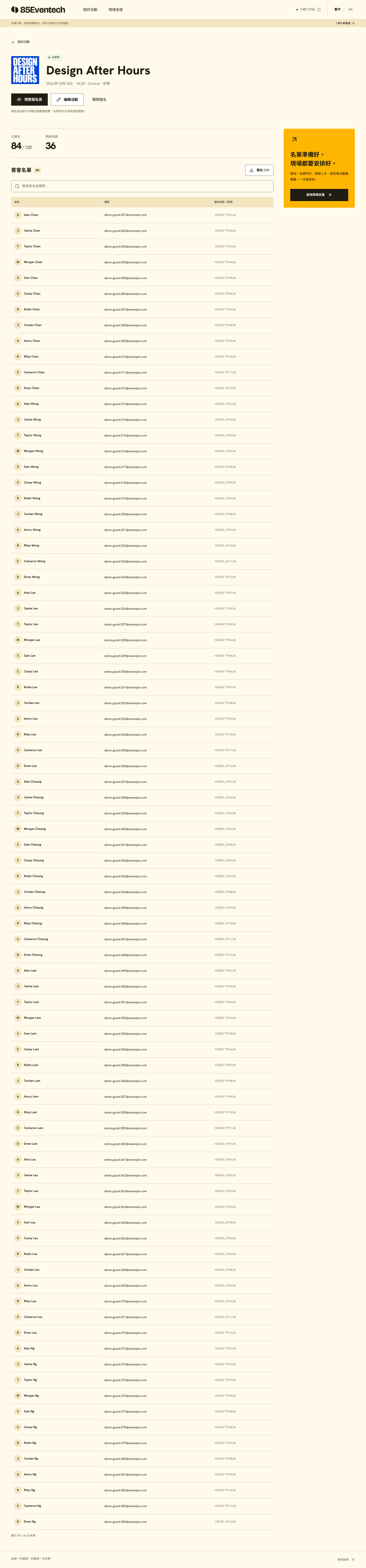
Prepare your guest list for handover
Search guests and export CSV. Export follows the current search results; clear search to export the full list.
ONSITE SERVICE WALKTHROUGH
From reception to handover, make the onsite workflow clear.
For organisers who want to understand equipment, crew and responsibilities. The standard setup includes an iPad, an iPhone used in the agreed workflow and a paper badge printer; arrangements are confirmed for each event.
- 01
Confirm equipment and roles
Check the iPad, iPhone, paper badge printer, network and entrance roles against the agreed plan. Before the event, the team reviews the guest-list handover and operating responsibilities.
- 02
Scan a demo QR with iPhone
Demonstrate the scanning workflow with an iPhone. Crew check guests against the list and organiser's rules; the live workflow is confirmed during planning.
- 03
Resolve exceptions before confirming entry
If a record is missing, details do not match or someone needs help, refer the case to the designated organiser contact. An unverified scan does not replace the organiser's decision.
- 04
Print and visually check badges
The paper printer can produce badges under the agreed setup. Check names, orientation and readability onsite. The badge on this demo page is a static sample with no printing or check-in connection.
- 05
Hand over to the organiser
Report completed tasks, exceptions needing follow-up and material status as agreed. Confirm data handling and retention after the event in advance.
The online demo shows event setup, registration and guest-list management. Onsite check-in and badge printing are supported through separately agreed equipment and crew arrangements; the website demo does not integrate check-in or printing software.
Ask about an onsite workflow walkthrough (opens in a new tab)Want to compare it with your event needs?
Tell us what kind of event you are planning so we can discuss the tool and onsite service scope.
Use configurable forms through event settings. The demo sends no email; live sending and onsite support follow actual availability and a quote.